The HydraProxy Browser Extension is one of the simplest and most efficient tools for managing proxies directly in your browser. This step-by-step guide explains how to install the extension, add and remove proxies, switch connections instantly, and optimize your browsing setup.
You can download our browser extensions below:
for Google Chrome: https://chromewebstore.google.com/search/HydraProxy%20-%20Proxy%20Manager
for Mozilla Firefox: https://addons.mozilla.org/en-US/firefox/addon/hydraproxy-proxy-manager/
for Microsoft Edge: https://microsoftedge.microsoft.com/addons/detail/hydraproxy-proxy-manage/moffldgcacfbaknhdigafpnnfklbhnpc
1.1 Install the HydraProxy Google Chrome Extension
To get started:
- Open Google Chrome and go to the Chrome Web Store.
- Search for HydraProxy – Proxy Manager.or click here

- Click Add to Chrome, then confirm with Add Extension.
Once installed, the HydraProxy icon appears in your Google Chrome toolbar for quick access.
1.2 Install the HydraProxy Mozilla Firefox Extension
To get started:
- Open Mozilla Firefox and go to the Add-ons Web Store.
- Search for HydraProxy – Proxy Manager.or click here
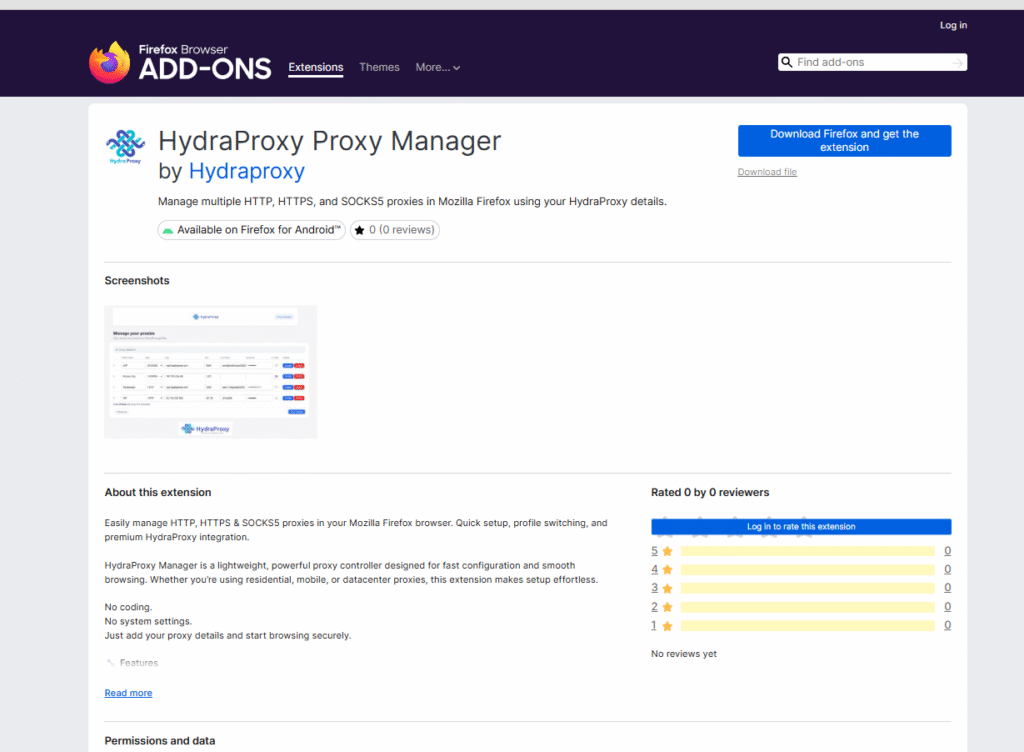
- Click Add to Chrome, then confirm with Add Extension.
Once installed, the HydraProxy icon appears in your Chrome toolbar for quick access.
1.1 Install the HydraProxy Microsoft Edge Extension
To get started:
- Open Microsoft Edge and go to the Edge Add-ons Store.
- Search for HydraProxy – Proxy Manager.or click here
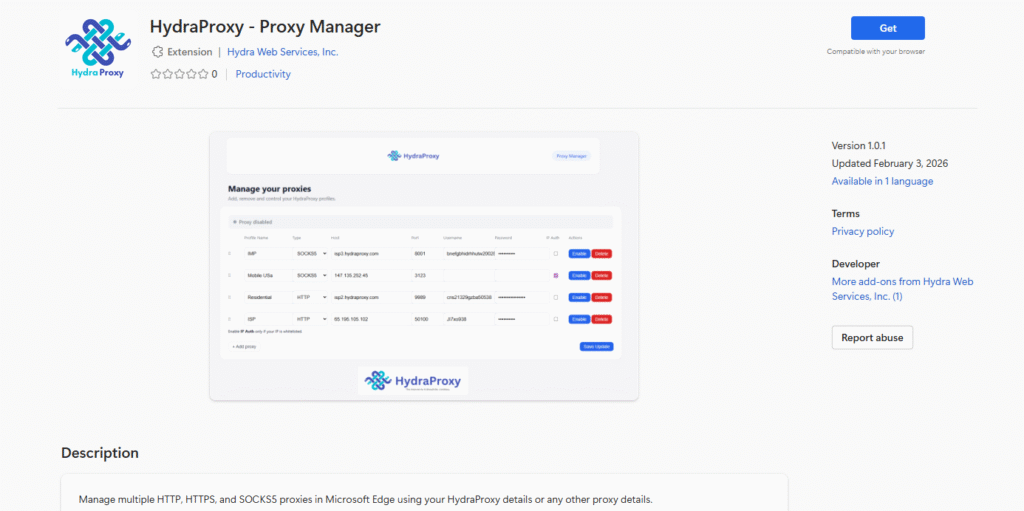
- Click “GET“, then confirm with Add Extension.
Once installed, the HydraProxy icon appears in your Microsoft Edge toolbar for quick access.
2. Open the HydraProxy Extension Panel
Click the HydraProxy icon in the browser toolbar to open the control panel. The interface is clean, intuitive, and designed for fast proxy configuration.

3. Add a New Proxy
HydraProxy makes adding proxies simple:
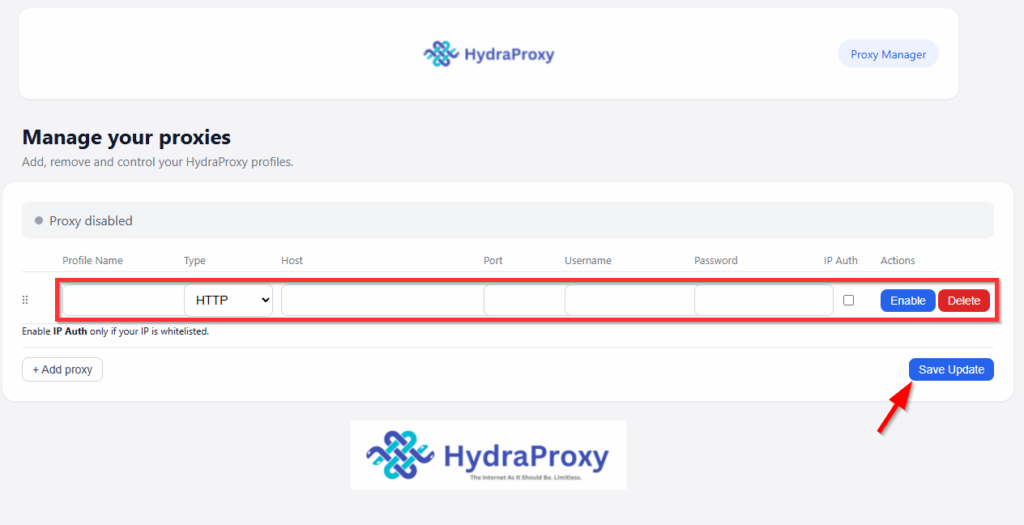
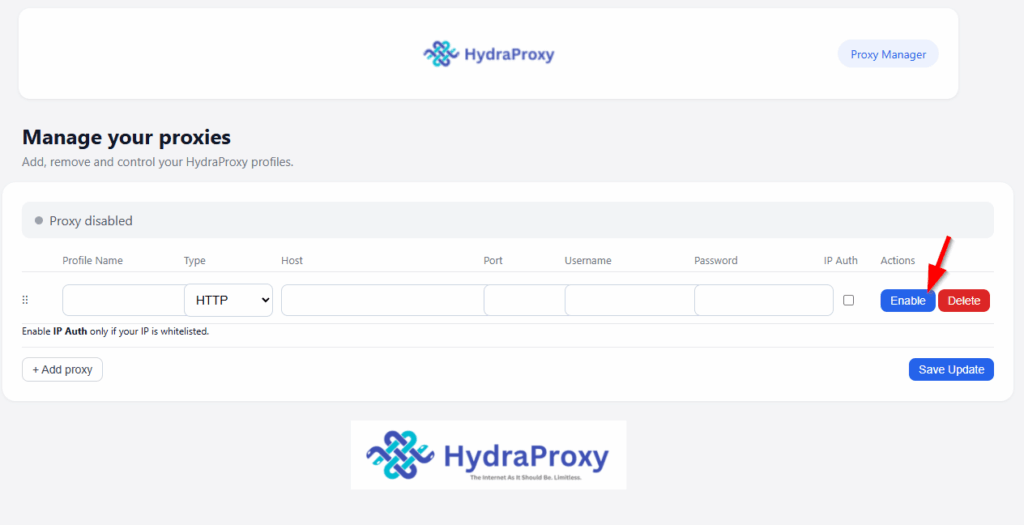
- Enter the required details:
- IP address
- Port number
- Username and password (if required)
- Protocol: HTTP, HTTPS, or SOCKS
- Click Save Update to store the proxy.
- If you need to add another proxy, click Add Proxy button.
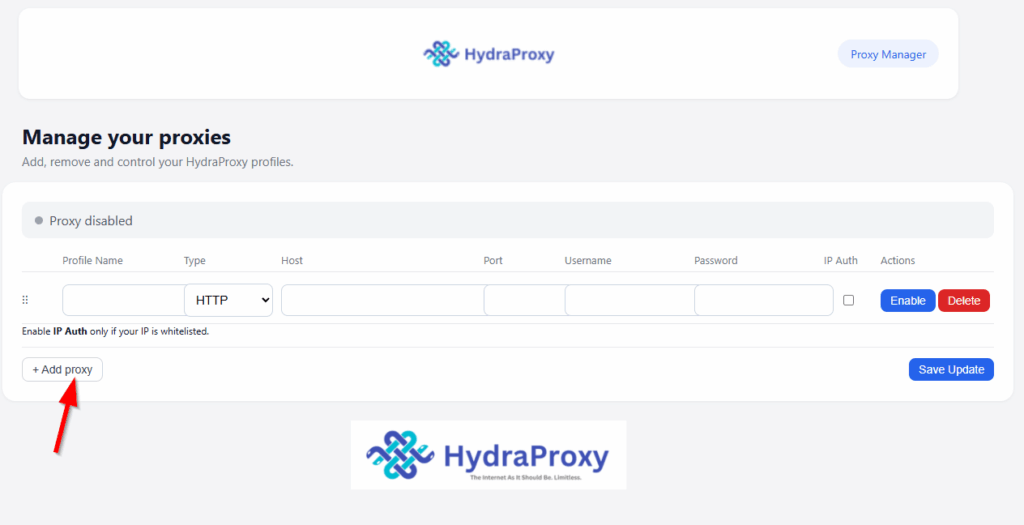
Your proxy will now appear in your list. The only thing you need to do now is to click on the “Enable” button.
4. Delete an Existing Proxy
To remove a proxy from your list:
- Locate the proxy entry.
- Click the delete or trash icon.
- Confirm removal.
This helps keep your list organized and efficient.
5. Choose Your Protocol Type (HTTP, HTTPS, SOCKS)
HydraProxy supports all major proxy protocols:
- HTTP for standard traffic
- HTTPS for encrypted connections
- SOCKS4/SOCKS5 for advanced anonymity and compatibility
Simply select your protocol during proxy setup.
6. Switch Between Proxies Instantly
HydraProxy allows you to change proxies instantly without restarting your browser:
- Open the HydraProxy panel.
- Click on any proxy in your list to activate it and desactivate any other proxy.
This feature is ideal for SEO tasks, geo-targeting, account management, and safe browsing.
7. Disable the Proxy and Restore Your Real IP
To return to your normal browsing IP:
- Open the HydraProxy extension.
- Select Disable Proxy.
Chrome will immediately revert to your original network settings.
8. Use HydraProxy Completely Free
HydraProxy offers full functionality at no cost. There are:
- No subscription fees
- No usage limits
- No hidden charges
All features—including proxy switching, protocol support, and unlimited proxy entries—are 100% free.
SEO Terms: free proxy manager Chrome extension, no-cost proxy tool
9. Tips for Best Performance
To get the most out of HydraProxy:
- Use reliable proxy providers for better speed.
- Keep your proxy list clean and up-to-date.
- Test your IP after switching on sites like whatismyip.com or Ipapi.com
10. Troubleshooting Common Issues
If your proxy doesn’t work:
- Double-check the IP, port, and credentials.
- Make sure the selected protocol matches your provider’s format.
- Disable other extensions that may override proxy settings.
- Restart Chrome if the proxy doesn’t activate immediately.
Most issues stem from incorrect proxy details or faulty proxy servers.
Conclusion: The Easiest Proxy Manager for Chrome
HydraProxy provides a fast, user-friendly, and completely free way to manage proxies in Google Chrome, Mozilla Firefox or Microsoft Edge. With instant switching, full protocol support, and simple setup, it’s the ideal tool for professionals, researchers, marketers, and anyone who relies on proxies for secure and flexible browsing.
If you nee further instructions please check the video tutorial below: