Choosing the right mobile proxy provider is only half the battle; knowing how to navigate the procurement process efficiently is what gets your project off the ground.
This guide provides a step-by-step walkthrough on how to place an order for residential proxies at Infatica.io, from initial registration to generating your first proxy list.
Step 1: Getting Started
Before you can purchase any services, you need to create an account or log into your existing account.
- Visit the Hydraproxy client dashboard
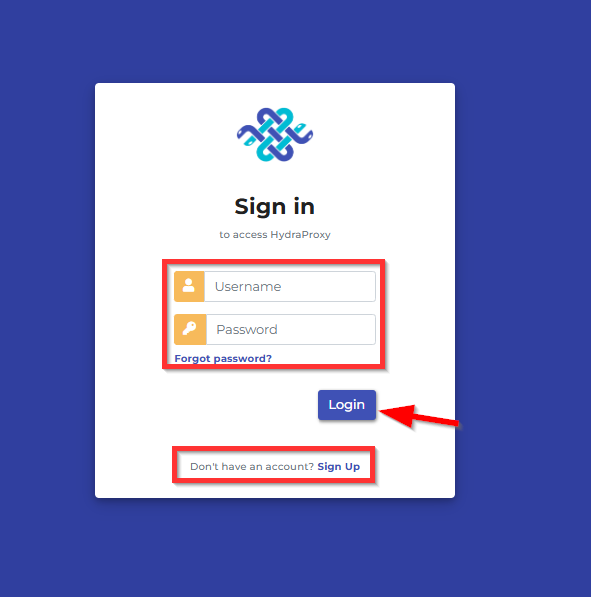
- Insert your Username and Password then click the LogIn button if you already have an account or Create Account if not.
- If you are a new customer:
- Fill in your details (name, email, and password)
- Once registered, you will need to verify the account by email then login using your newly created Username and Password
- Next step is to edit your biling details from the Settings button under “Your Account” section

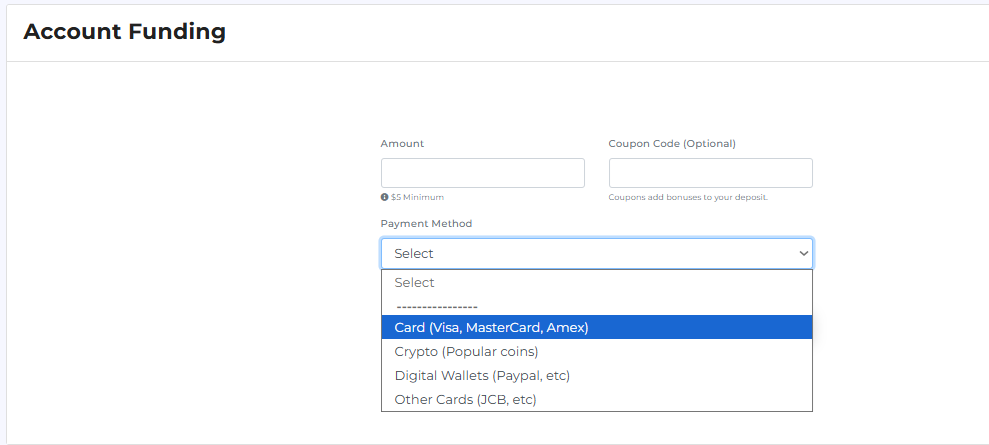
- Before placing any order you will need to add funds to your account. You can do this by clicking the ADD Funds button (will only work if you edited your billing details before – check above). We accept these payment methods:
- Credit/Debit Cards
- Crypto (BTC, Bitcoin (Lightning Network), ETH, LTC, MATIC, Solana, USDT ERC20 & TRC20 (Tether USD on Ethereum and Tron blockchains), USDC ERC20 (USD Coin on Ethereum blockchain)
- Digital Wallets (PayPal, WebMoney, Boleto, iDEAL, MercadoPago, and others)

Step 2: Placing the Order
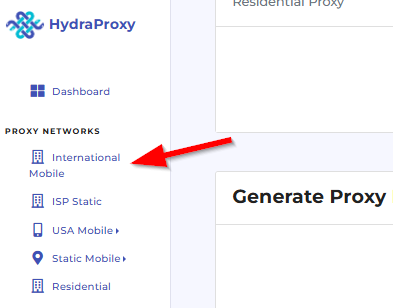
- First you need to click on the International Mobile button:
- Here you only need to fill 2 boxes
- The usage field should be filled with a couple of words on how you plan on using your proxy order (eg: scraping, social media, smm, account login, research, etc). It is a text of two-to-three words that will help you identify your proxy order (you can consider it your order’s name).
- The Bandwidth need to be field with the number of GB you want to purchase eg. : 1 – for purchasing 1 gb
- After filling these boxes just clck on the Order button and wait for a few seconds for the order to be placed

- If the order was placed successfull you will be redirected to the manage access page of the order you just placed
You can always find your order in your main page of your dasahboard under the Residential proxies card

Step 3: Setting up and generating proxies
- If not redirected automatically click on the Manage Access button next to your resiential order

- In the first card you can find info related to the bandwidth consumption and the following to options:
- Add bandwidth – you can add bandwidth to the current order
- Alerts & autobilling – here you can set alarms so you get notified by email if the available bandwidth drops under a certain level and also set up adding automatically x ammount of bandwidth

- Second card is the most important in this whole section. here you set all the proxy setails such as location (country/region/city/isp), protocol and rotation setup
- First you need to select what type of targeting are you interested in and you have 2 options:
- Country and ISP targeting
- Country – state and city targeting
- First you need to select what type of targeting are you interested in and you have 2 options:
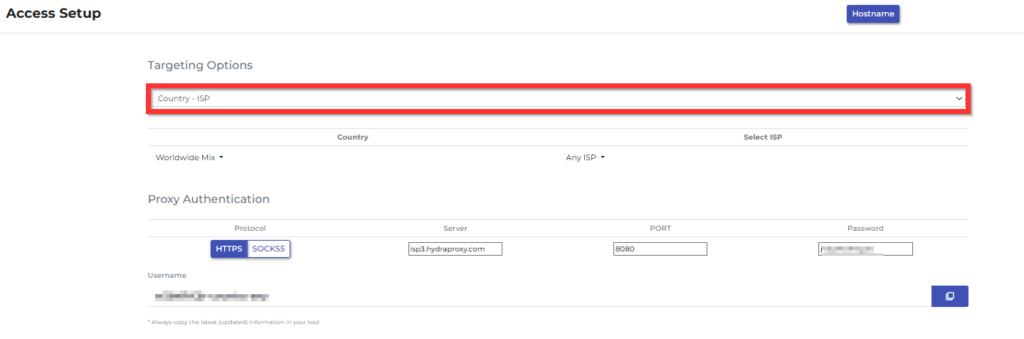
- Then you can edit the filters you selected on the previous step:
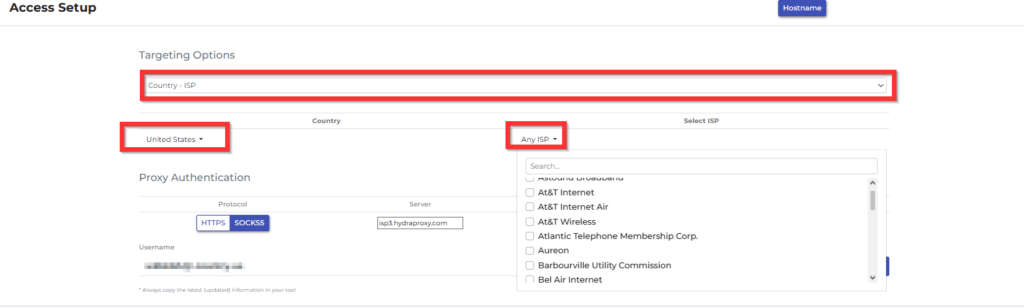
- If you selected Country – ISP targeting
- click on Worldwide Mix and the country list will appear bellow
- after selecting the country click on ISP and the available ISP providers will appear bellow
- If you selected Country – ISP targeting
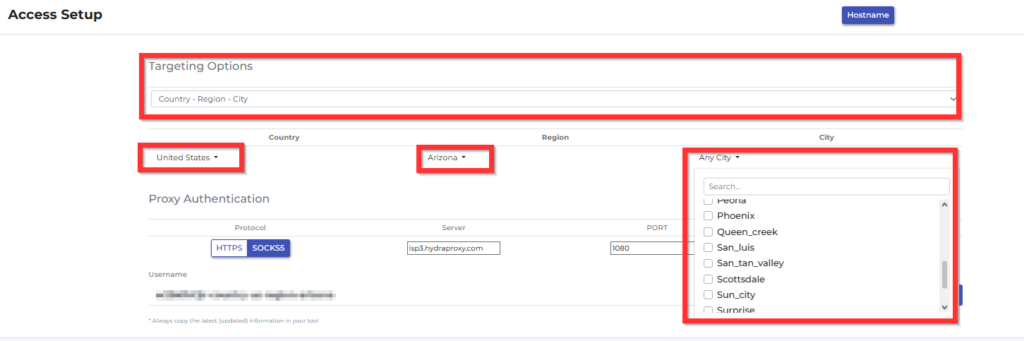
If you selected Country – State/Region – City
- click on Worldwide Mix and the country list will appear bellow
- after selecting the country click on Region and the available Region will appear bellow
- then you can select specific city
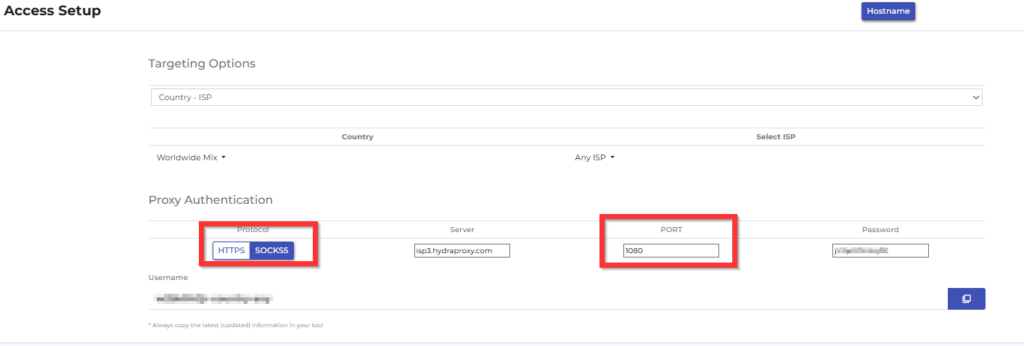
- Then you need to select the protocol and for this you also have 2 options:
- HTTP will use port 8080
- SOCKS will use port 1080
Please note that the more granular you go by choosing Country -> region-> city, the IP pool number drops and you might get limited number of unique IPs
Step 4: Multi-Access Points
Under this section you can generate a proxy list, select proxy format and also select the proxy rotation periods
First you need to enter the numer of access points you need and select out of the following proxy formats:
hostname:port:username:password
username:password@hostname:port
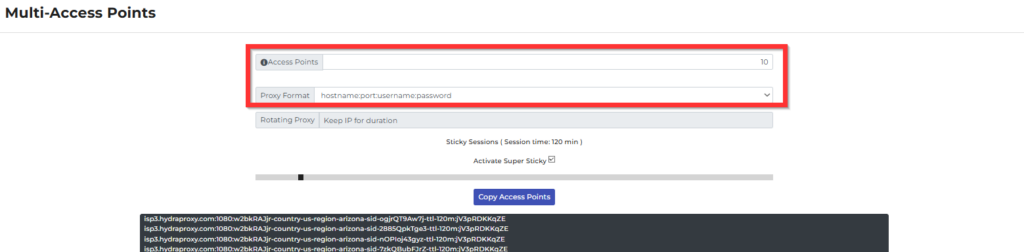
Using the drag selection you can set the rotation period. Please note that we cannot guarantee the exact session duration as some ips might go offline during a session and a new ip will be attributed in order to avoid any downtime
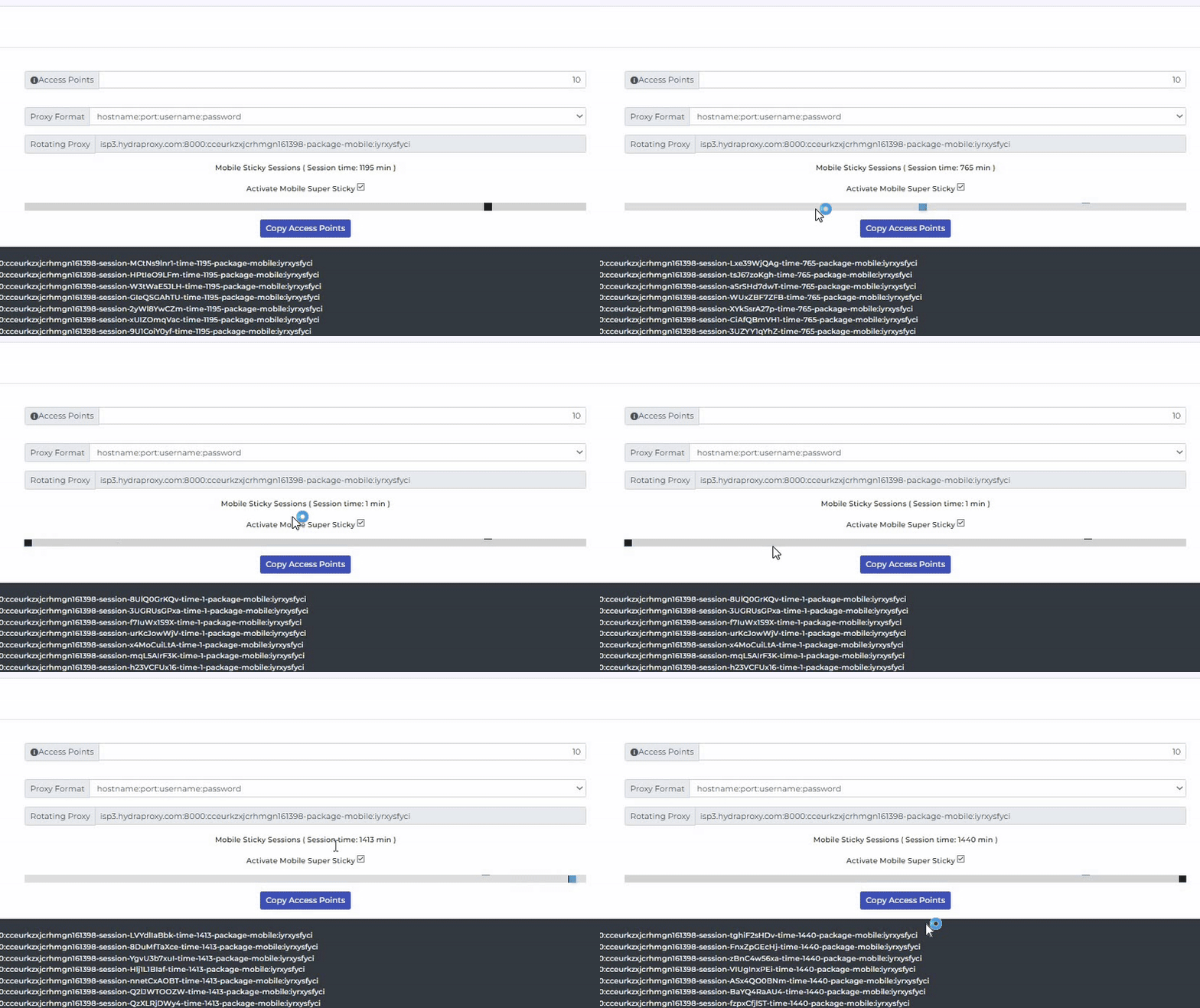
Here you also have the option to copy the generated proxy list and paste in your software/script.